Showing posts with label mod. Show all posts

How To Install Humans+

If you thought the millenaire mod was cool then you'll probably like this one too. It creates a bunch of wandering knights with different alignments and allegiances. They wander the world seeking enemies to kill and how you act will make them decide whether they like you or not.

It also adds horses and mounted knights! Yeah, I had to have it too!

It's a lot like Monty Pythons Holy Grail, in that, it seems completely random and more than a little silly sometimes (like random ninjas in the forest), but honestly: who cares! And with the millenaire mod the world seems a lot more alive.

Here are some screen shots:

Some evil dude in the village

A mounted knight.

Another knight

I found these two fighting in the woods.

This knight likes water
Grumpy knight.

How To Install The Humans+ Mod:

It is compatible with the millenaire mod.

You will need the AudioMod
You will need the ModLoader

====================================//==================================
I strongly recommend that you make a backup of your entire minecraft folder which you can find in C:\Users\[User Name]\AppData\Roaming\.minecraft Simply copy and paste it into the Roaming (where .minecraft is) directory and windows will append a -copy to it. Now if something goes wrong you can delete your minecraft folder and remove the "-copy" from your backup and you're back in business.
==================================//=====================================

First you'll need to download it: Humans+ You can find more info here

Open the zip file with 7zip or WinRar (don't extract it)

Now go to  C:\Users\[User Name]\AppData\Roaming\.minecraft\bin\minecraft.jar and open minecraft.jar the same way.

In Humans+ open the "Files to add to minecraft.jar" folder and click on the top folder then hold the shift key and click on the last file, so that everything is highlighted. Drag and drop into minecraft.jar.


 Important: While minecraft.jar is still open delete the META-INF folder (if it's there).

Now open C:\Users\[User Name]\AppData\Roaming\.minecraft\resources\mod\sound\human

If the folders don't exist then make them. (right click  new>new folder and name it)

In the Humans+ zip you downloaded open the folder "Files to add to Resources" then "mod" then "sound" then "human" then, like above, highlight all the files.

Now drag and drop the files into C:\Users\Buckaroo Popcorn\AppData\Roaming\.minecraft\resources\mod\sound\human


Now open the "mods" in the Humans+ zip.

Open C:\Users\[User Name]\AppData\Roaming\.minecraft\mods

Drag and drop the "HumansPlus" folder into the open mods folder


Now close everything, fire up Minecraft and with any luck, it should be running.

Knights won't appear on peaceful.

Please remember that modding anything implies risk and I am not making any promises that you will not encounter a problem. I'm simply explaining what worked for me. If you have difficulty try getting a new minecraft.jar, make sure you followed the instructions exactly, make sure you have the most up to date version of the mod and minecraft and remember that mods often don't work well together - which is why you backed up - right?

>

Baby Animals Mod

I found this great and very cute mod that puts little baby animals in your minecraft world. It's super easy to install.

You can visit the original site here: Baby Animals.

Here is my quick install tut:

Make sure you make backups of your files and exit entirely out of Minecraft before installing this mod.

You will need the ModLoader v5 already installed (I explain how to do that in the Millénaire NPC Village mod tutorial).

You'll also want the Audiomod. It isn't critical but it does add to the mod. The instructions for the audio mod are in the download but they are a little complex. I was careful to only add files and folders not replace them as the instructions stated. It worked. Maybe the way they said would have worked too but I wasn't willing to risk wrecking my other mods.

Download the BabyAnimalsv17.zip and wolfpup.class.  Open Baby Animals with 7zip and drag the wolfpup.class into it, then close 7zip. Next drag and drop BabyAnimals_v1_7 into the C:\Users\[user name]\AppData\Roaming\.minecraft\mods folder (don't extract). That's it.

Baby cows
A little chick
A baby lamb
A wolf pup


I want to say thanx to the makers of these mods. They really enhance the game.

Important: At this time, this mod doesn't work with the The Millénaire mod. It will mess it up.

>

How To Hack (Mod) A Texture Pack Quickly and Easily

So I was using Ovo's Rustic Pack and ed suggested that I pimp out the minecart. I think he correctly noticed that the cart didn't match the pack. I noticed it too once he pointed it out - thanx for the idea ed!


Now editing texture packs seems like a huge job. I mean you have to open files and draw new ones and look for textures and all that. Well,... forget it,... I'm too lazy for that, I just want to minecraft!

In typical hacker fashion though I've found a short cut.

I looked around for a texture pack that had a pimped minecart that I liked and ran across Glimmars Steampunk and it's just off the hook!

So I downloaded it and placed the file in [user]/AppData/Roaming/.minecraft/texturepacks (this is an HD pack so you might want to check out: How to install an HD (High Definition) texture pack).

I ran the pack and saw that I liked the cart. So I opened up the pack with 7zip and found a a folder called item:


And in there I found cart.png


So I extracted the folder "item" to my desktop. I then opened Ovo's Rustic Pack with 7zip and dragged the "item" folder from my desktop into it. 7zip asked if I wanted to replace the existing item folder, which I did. At this point I could have selected and changed around the contents of the item folder, but I didn't, it's that lazy thing again.

I closed 7zip and fired up minecraft and pow-boom, there it was: Glimmar's cart in Ovo's texturepack.


Now I want to mod the mobs.

And I'm thinking about making a texture pack..... damn.....

>

How To Change Pictures/Artwork in Minecraft

I was asked to post a tutorial on changing the artwork in minecraft once I figured it out. Well,... I did,... so here's the tutorial:

First you'll need something to open the minecraft.jar file and an image editor.

As always I like to use free stuff. So to open the minecraft jar file I use 7zip and to edit the picture I use paint.net. You can also use winrar and photoshop or paint.


So,... navigate to: C:\Users\[Your Username]\AppData\Roaming\.minecraft\bin\minecraft.jar

Back up any files before you change them. Just copy past into the same folder and windows (7) will automatically append a -copy.

Note: If you are using a texture pack then navigate to it instead since minecraft will be using the art folder in the texture pack zip not the minecraft.jar.

Right click on minecraft.jar and select "7zip" and "open archive."

Navigate to the "art" folder and click on Kz.png then select "extract" above the address bar.


Once you have extracted Kz.png you can open it in your image editor. You'll need to zoom in.


Open the artwork you want to add by going to Image > Import From File, navigate to the picture you want and click OK.


Now you'll need to re-size the image over an existing image by grabing and draging the small boxes around your imported image. Make sure your image covers the existing one exactly.

Like so:


Tip: If you import a large image your canvas size will change and you'll need to trim it back to its original size.

Once you are done editing the Kz.png file drag and drop the "art" folder into 7zip to save. Don't try and change the file but change the folder with your new file inside it.

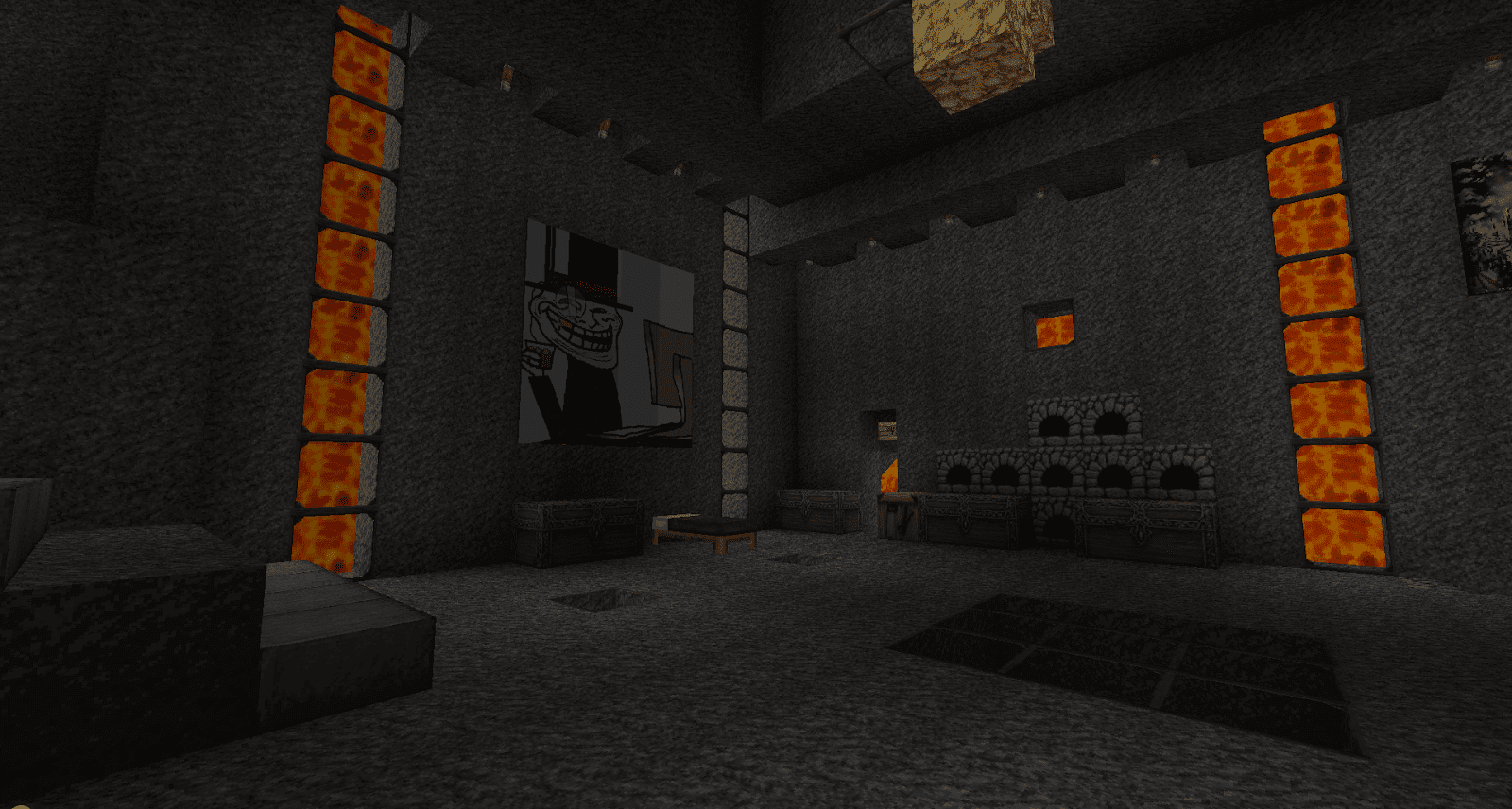
Here is my new image file:


Save this file if you want to use it. It's the right size and good to go.
Screen shots:


 I'm using an HD texture pack and mod so my images look way better than they would otherwise.

Overall I think it spruces the place up ;)


My Texture Pack

I've decided to share my Minecraft texture pack/mods. It requires a half decent computer to pull off, so hold down F3 in Minecraft and if your not getting 60+FPS then this isn't for you.

*Updates*

 - New tree (beta-snowy) leaves now work.
 - Snow matches sides without snow on much better.
 - Snow "tiles" much better.
 - Little fixes around the edges of some blocks.

This pack contains:

- The pack is mostly the BroPaint texture pack made by Rofrere. It also contains the HD texture fix by xau, and the awesome MrMMods (BetterLight/BetterGrass) by MrMessiah. Full credits are included in the pack.

 - Full set of lovely new textures, or the option to keep most of the defaults so only the scenery (and a few other things) look nice, whilst the blocks you craft keep the original "feel" of Minecraft

 - New Sun and Moon from the BroPaint pack, these look great when rising/setting.
 - New hearts/health meter from the BroPaint pack.
 - Scarier spiders, zombies and ghasts. Also less clean looking sheep.
 - New water, unfortunately it's not animated when still, but I think it still looks good.
 - Lovely sand and sandstone from Dante80s ALBION 64x Texture pack.

Does all that sound good? Well it looks even better! Get the pack here.

Screenshots (will update with more soon, also pigs don't look this crazy anymore. Click for full screen. Actually click. Especially if you have a 1920x1080 monitor so you can view full size.)

Installation Instructions:

 - Extract the archive into C:\Users\(your user name)\AppData\Roaming\.minecraft This may be slightly different depending on your operating system. "AppData" is a hidden file, so you will have to enable seeing them if you haven't already.

 - Run mcpatcher (the HD texture fix).
 - Set the Original file to \bin\minecraft-1.2_02.jar(correct at time of writing) & Output file to \bin\minecraft.jar
 - Set the Texture pack to a .zip file & check the Tile Size has changed to 128x128
 - Press Patch and after completion, close the Minecraft Patcher.
 - Run MrMPatcher.
 - Set Original and Output files like in the other patcher.
 - Highlight the Better Light and Better Grass boxes and press Patch.
 - After completion, close the patcher and play Minecraft!

 - To switch to the other texture pack included, do exactly the same again but select the other texture pack, it's really that simple!

 - To uninstall everything, delete your C:\Users\(user)\AppData\Roaming\.minecraft\bin folder, then start up Minecraft and it will re-download it for you. You will not lose your save files. As you can see these are very safe mods to install.

I would like to update the pack with a few more things sometime, comments and suggestions are appreciated.

Blog Archive